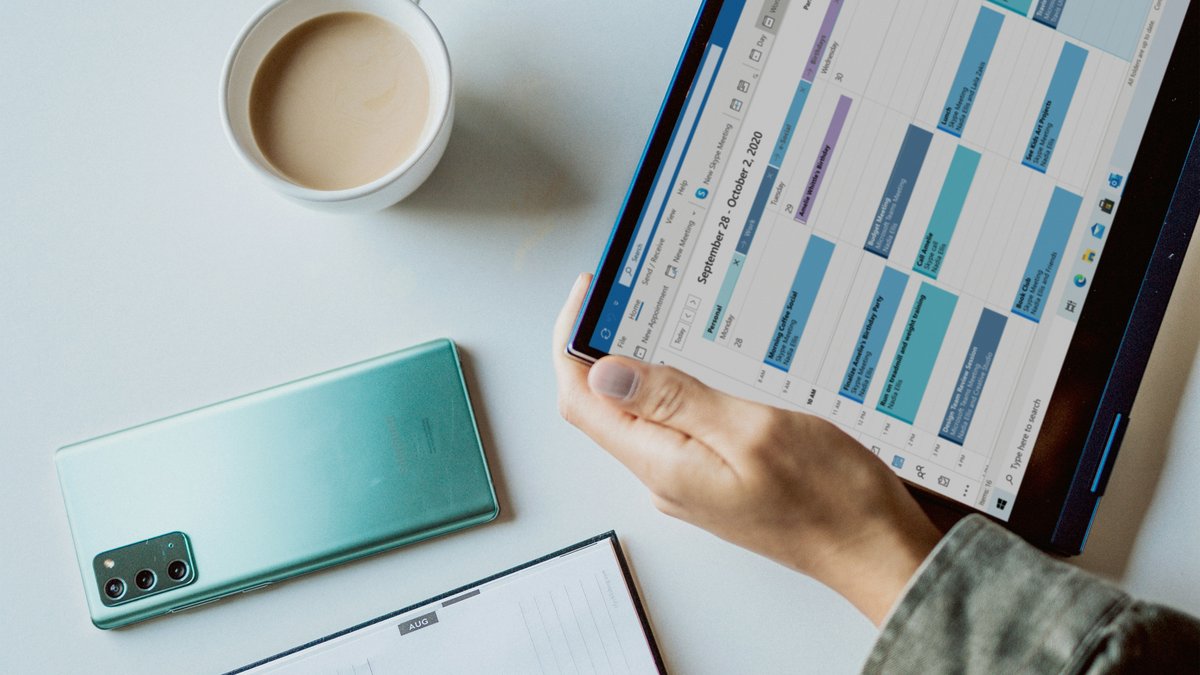
How Does Calendar Sync Work?
Connect Google Calendar, Microsoft Outlook, or both — Kandid.pro keeps your interview schedule, networking events, and job search activities synchronised across all your calendars in real time. No copy-pasting, no double-bookings, no missed interviews.
1. Connect
Link your Google or Microsoft account from Settings with one click. OAuth keeps your credentials secure — Kandid.pro never sees or stores your email password.
2. Configure
Choose your sync direction for each provider: push only, pull only, or bidirectional. Set your sync window from 30 to 365 days to control exactly how much history and future you see.
3. Stay in Sync
Events flow seamlessly between Kandid.pro and your calendars. Edits, reschedules, and cancellations sync both ways — your schedule is always current.
What Makes Calendar Sync Powerful?
Flexible calendar sync with Google and Microsoft means you choose exactly how events flow. Push Kandid.pro events out, pull external events in, or sync both ways. Your job search stays organised no matter where you manage your time.
Google Calendar & Microsoft Calendar
Connect Outlook, Hotmail, Live, or Microsoft 365 alongside Google. Use one or both at the same time — each provider syncs independently with its own settings.
Flexible Sync Directions
Push events out, pull events in, or sync both ways — choose the direction that works for each connected calendar independently.
Real-Time Updates
Changes sync on every visit, so your calendar is always current. Hit "Sync Now" any time you want an instant refresh — no waiting, no stale data.
Choose What Syncs
Push only, pull only, or bidirectional — you're in control of what flows where for each connected calendar.
Colour-Coded Sources
Instantly see which events came from Google, Microsoft, or Kandid.pro with customisable colour coding. No more guessing where an event originated.
Privacy-First Imports
Imported calendar events display the event title and time only — descriptions are excluded for privacy.
Which Calendar Providers Are Supported?
Kandid.pro supports the two calendar ecosystems that cover the vast majority of professionals. Connect one or both — each provider syncs independently with its own settings and colour coding.
Google Calendar
Works with Gmail and Google Workspace accounts. Connect in seconds with secure OAuth authentication.
Microsoft Calendar
Supports Outlook.com, Hotmail, Live, MSN, and Microsoft 365 work or school accounts. Full sync support across all Microsoft account types.
Calendar Sync Options
Choose one of three sync directions for each provider. Each provider (Google Calendar and Microsoft Calendar) can be configured independently with its own sync direction.
Kandid.pro → Calendar (Push Only)
Push events created in Kandid.pro to your external calendar. Any changes you make to these events in your external calendar will automatically sync back to Kandid.pro.
Kandid.pro ← Calendar (Pull Only)
Import events from your external calendar into Kandid.pro. Only the event title and time are imported — descriptions are not included. Events created in Kandid.pro will not be pushed to your external calendar.
Kandid.pro ↔ Calendar (Bidirectional)
Full two-way sync. Events created in Kandid.pro are pushed to your external calendar, and events from your external calendar are imported into Kandid.pro.
Frequently Asked Questions
Can I connect both Google and Microsoft at the same time?
Yes. Connect as many providers as you like — each syncs independently with its own settings and colour coding.
What happens to my events if I disconnect a calendar?
You choose. Keep imported events in Kandid.pro, or remove them when you disconnect. Events in your external calendar are never deleted.
Is my calendar data secure?
Kandid.pro uses OAuth 2.0 — we never see or store your email password. Calendar access tokens are encrypted and can be revoked at any time by disconnecting.
How often does sync happen?
Kandid.pro syncs incrementally every time you open the calendar. You can also trigger a manual sync at any time with the "Sync Now" button.
What data is imported from external events?
Only the event title and time. Descriptions are excluded for privacy.
What happens if I switch from a mode that imports events to push-only?
You will be prompted to keep or delete previously imported events. Your Kandid.pro events are unaffected.
What happens if I disconnect one provider?
Each provider is independent. Removing one has zero impact on the other — your remaining connections continue syncing as normal.